Branding Your AI Web Agent: Colors, Launcher Position and Starter Questions

TL;DR
Match the widget to your existing brand
Keep enough contrast between the launcher and the page
Place the launcher where it does not cover important buttons
Use starter questions based on the page the visitor is viewing
Keep the first questions short and easy to tap
Test the widget on mobile as well as desktop
Check whether your plan includes branding removal
Matram lets you adjust the widget’s colors, launcher position, avatar, welcome message, and quick prompts from its available appearance controls.
Introduction
A chatbot should look like part of your website, not like a small advertisement from another company.
The color may be slightly wrong. The launcher may cover your cookie button. The welcome message may ask a question that has nothing to do with the page. Each detail is small, but together they make the widget feel disconnected.
If you searched for “customize ai chatbot widget”, you probably want more than a color change. You want the widget to feel natural on the page and make it easier for visitors to start a useful conversation.
That is the real goal of widget branding.
What does customize ai chatbot widget actually mean?
To customize an AI chatbot widget means adjusting the way it appears and how visitors begin using it.
There are three separate parts:
1. Visual identity
Colors, avatar, launcher style, and preset appearance
2. Placement
Where the launcher appears and how it behaves around page elements
3. Conversation entry point
Welcome message and starter questions that help visitors begin
These settings change the visitor experience. They do not automatically improve the chatbot’s knowledge.
A beautifully branded widget can still give weak answers if the source content is incomplete. The appearance should support the conversation, not distract from it.
How Matram lets you customize ai chatbot widget settings
Customising the welcome message, input placeholder, and tooltip in Matram.
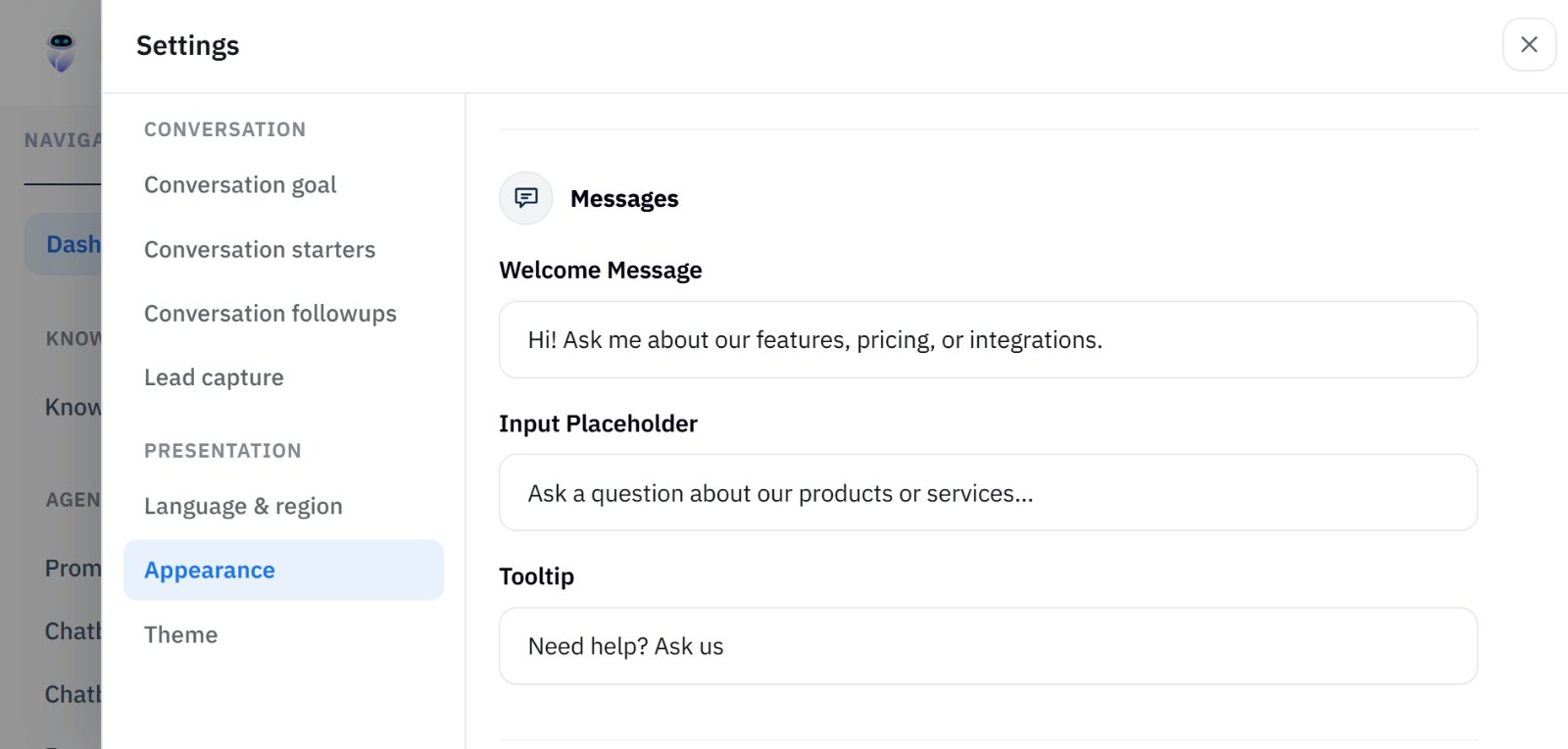
Matram’s features page says the Appearance panel controls colors, launcher position, and preset styles. Its integration documentation also lists avatar, welcome message, quick prompts, and other website widget controls.
The widget is embedded with one line of JavaScript, so the design work happens inside the chatbot setup rather than through a separate custom build.
When you customize ai chatbot widget settings in Matram, focus on these areas:
- Brand color
- Launcher position
- Avatar or icon
- Welcome message
- Starter questions
- Widget behavior on smaller screens
Matram also keeps answers grounded in your approved content and can show citations. That means the visual layer and the answer layer have different jobs.
The design helps people start. The source content determines whether the answer deserves trust.
Choose colors that help the widget get noticed
The widget needs to be visible without fighting with the rest of the page.
When you customize ai chatbot widget colors, start with your existing brand palette rather than choosing a completely new color.
Use one main accent for:
- Launcher button
- Send button
- Selected states
- Links or action prompts
Then check the contrast against:
- White backgrounds
- Dark sections
- Product images
- Pricing tables
- Mobile screens
A common mistake is choosing a light brand color because it looks good in the brand guide. It may disappear against a pale website background.
Another mistake is using too many colors inside the widget. A visitor should understand what is clickable within a second or two.
Place the launcher where it will not block the page
The launcher is small, but its position affects the entire browsing experience.
Before you customize ai chatbot widget placement, check the pages where people actually use the widget.
Look for:
- Cookie consent buttons
- Sticky navigation
- WhatsApp buttons
- Checkout controls
- “Book a demo” buttons
- Mobile bottom navigation
- Accessibility controls
A launcher that sits over a primary CTA can reduce the visibility of the action you want visitors to take.
The best position is not always the default right corner. It depends on the layout, the device, and the other floating elements already on the page.
Test the launcher on:
- Desktop
- Tablet
- Mobile
- Long pages
- Pricing pages
- Forms
- Checkout or booking pages
If your website uses a fixed bottom bar, check that the chatbot does not cover it when the widget opens.
Write starter questions for the page, not for the company
Starter questions should help visitors ask the next obvious question.
Avoid generic prompts such as:
- How can I help?
- Ask me anything
- What would you like to know?
- Tell me more
Those prompts place all the work on the visitor.
Instead, match the questions to the page.
| Page type | Better starter questions |
|---|---|
| Pricing page | Which plan is right for a small support team? |
| Product page | What can this product help me automate? |
| Documentation page | How do I set this up? |
| Real estate page | Can I qualify a property enquiry? |
| Contact page | Can I speak to someone from the team? |
When you customize ai chatbot widget starter questions, keep them short enough to read quickly and specific enough to produce a useful answer.
Three or four prompts are usually enough. More options can make the widget feel crowded.
Do not use a starter question if the chatbot cannot answer it from the approved content. A prompt that leads to an unsupported answer creates a poor first impression.
Match the welcome message to the visitor’s intent
The welcome message should explain what the visitor can do next.
For example:
Ask about plans, setup, or support. I’ll answer from the information on this website.
This is clearer than:
Hello. I am an AI assistant. How may I assist you today?
The first version sets an expectation about the source. The second sounds generic and makes a broad promise.
If the chatbot can hand off to a person, mention that only when the workflow is configured and available. Do not promise instant human support if nobody is monitoring the inbox.
You can also use the welcome message to set a boundary:
I can explain our products and policies. For account-specific requests, I’ll connect you with the team.
That sentence prevents visitors from assuming the widget can access private account information.
Keep branding consistent without hiding the chatbot
A branded widget should still look like a support tool.
Do not make the launcher identical to:
- A notification badge
- A payment button
- A floating social icon
- A promotional popup
- A live sales alert
Visitors should understand that clicking it opens a conversation.
Use a clear chat icon, a short welcome message, and enough spacing around the launcher. Branding should make the widget recognisable, not confusing.
Matram’s published pricing information states that the Basic plan includes the widget and playground with Matram branding, while Standard and higher plans include branding removal. Check the current plan details before promising a fully white-labelled experience.
If you are connecting internal content, review Matram’s security information before publishing the widget.
Test the widget before you publish it
Previewing the branded AI web agent before publishing.
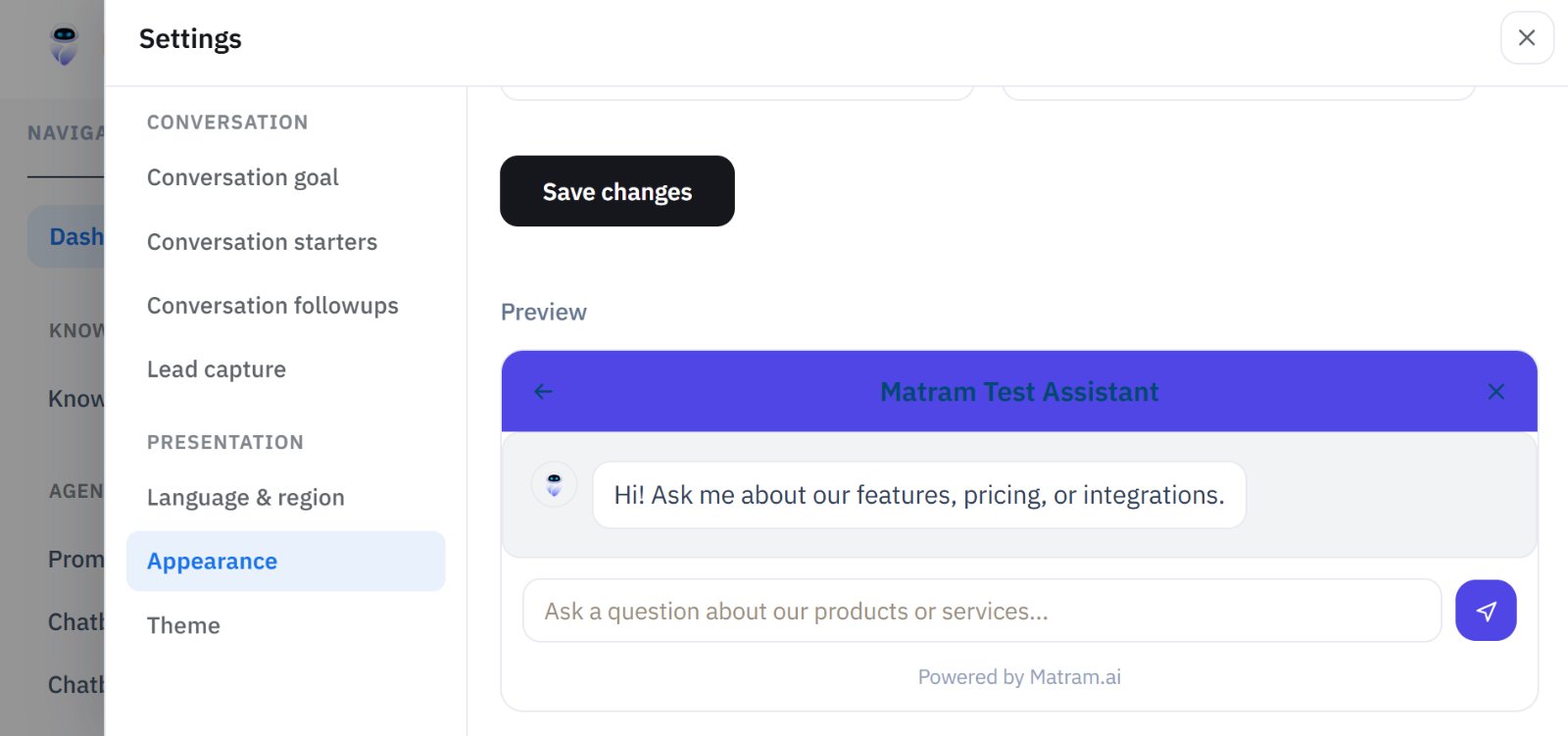
After you customize ai chatbot widget settings, test the complete visitor experience.
Use this checklist:
- Does the launcher appear on every important page?
- Is the color visible against light and dark backgrounds?
- Does it cover another button?
- Does it open correctly on mobile?
- Are the starter questions relevant to the page?
- Does each starter question produce a supported answer?
- Does the citation point to a useful source?
- Is the handoff message accurate?
- Can a visitor close the widget easily?
- Does the widget still look right after a page redesign?
Ask someone who did not configure the widget to test it. They will notice confusing prompts and placement problems faster than the person who built it.
Common mistakes when you customize ai chatbot widget settings
Changing colors without checking contrast
A color that looks attractive in a design file may be difficult to see on the live page.
Using the same starter questions everywhere
A visitor on a pricing page has a different need from someone reading a setup guide.
Covering important buttons
Check fixed navigation, forms, consent controls, and mobile actions before publishing.
Making promises in the welcome message
Only promise answers, handoffs, or actions that the configured workflow can actually provide.
Adding too many prompts
A long list of starter questions makes the first interaction harder, not easier.
Assuming branding creates trust
Visitors trust accurate answers, clear citations, and an easy handoff more than a matching color palette.
Matram FAQ: customizing an AI chatbot widget
How do I customize ai chatbot widget colors?
Choose a color that matches your website while keeping enough contrast for the launcher, buttons, and text. Test it on both light and dark sections of your site.
Can I change the chatbot launcher position?
Matram’s appearance controls include launcher positioning. Choose a location that does not cover forms, sticky buttons, navigation, or mobile controls.
What should I use as starter questions?
Use short questions connected to the page the visitor is viewing. On a pricing page, ask about plans. On a product page, ask about capabilities or setup.
Can Matram remove its branding?
Matram’s current pricing page states that branding removal is included with Standard and higher plans. Basic includes the widget and playground with Matram branding.
Will widget customization change the chatbot’s answers?
No. Appearance settings change how the widget looks and how visitors start a conversation. Answer quality still depends on the content connected to the chatbot and the response settings.
How do I know if my customized widget is working?
Test it on desktop and mobile, ask each starter question, check the citation, open and close the widget, and confirm that the launcher does not cover another important action.
Conclusion
To customize ai chatbot widget settings well, start with the visitor’s experience rather than the color picker.
Choose a visible but unobtrusive launcher. Use starter questions that match the page. Keep the welcome message honest. Test every interaction on mobile. Make sure the branding supports the conversation instead of competing with it.
Matram gives you appearance controls for the widget and a source-grounded answer system behind it. You can review Matram’s integrations to understand how the same chatbot can connect to your website and other channels.
When your widget is ready, explore Matram and test the design on a small set of important pages before rolling it across your entire site.
See Matram in action
Watch it answer from real content, with the exact source page cited, on the live demo.
Book a demo