How to route chatbot leads to HubSpot automatically

TL;DR
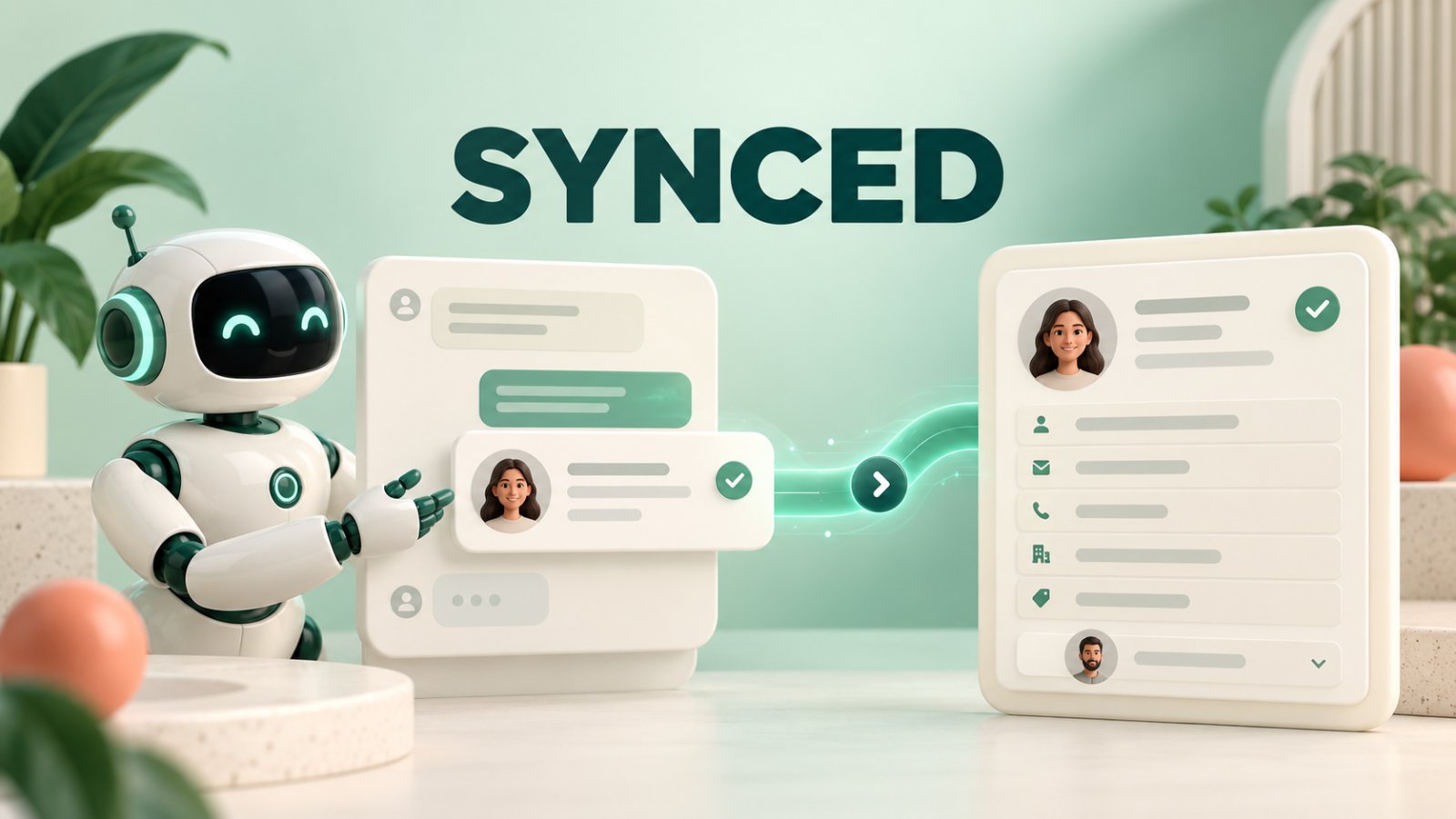
Matram answers questions from approved content and captures the lead details your team chooses.
A reliable HubSpot chatbot integration validates those details, matches existing contacts and creates only genuinely new records.
Qualification and routing are separate decisions. First decide whether the enquiry is sales-ready, then decide who should own it.
Matram does not currently offer a native HubSpot connector. Use its public API, available on Standard plans and above, with a protected backend or automation layer.
Test duplicates, returning customers, missing fields, unavailable owners and failed HubSpot requests before launch.
Short answer
To route chatbot leads to HubSpot automatically, use Matram to capture the visitor’s contact details and qualification answers, then send the lead event through Matram’s public API to a secure backend or approved automation platform. Search HubSpot for an existing contact before creating one, preserve reliable CRM data, assign a valid owner, attach useful conversation context and keep failed events in a visible retry queue.
Introduction
You can route chatbot leads to HubSpot without turning every conversation into a messy CRM record.
Matram answers visitors from your approved business content, captures the fields you choose and keeps the enquiry connected to the conversation. That gives your sales team more useful context than a basic form submission.
A dependable HubSpot chatbot integration should confirm that the visitor is contactable, check for an existing contact, apply qualification rules, select the right owner and record useful context.
Matram’s native HubSpot connector is not live today. Leads can be exported as CSV, while the public API on Standard plans and above can support an automatic connection. If you need zero-setup native CRM syncing, Matram is not currently the right fit. If visitors need a useful answer before sharing their details, read theMatram lead-generation chatbot guide.
What the finished workflow should do
A controlled workflow has seven parts:
| Stage | What happens | Success check |
|---|---|---|
| Capture | Matram collects the required contact and qualification fields | Required details and consent are present |
| Validate | The integration normalises email, phone and controlled values | Invalid records are held back |
| Match | HubSpot is searched using email or another governed unique property | Existing contacts are updated, not duplicated |
| Qualify | Written sales criteria are applied | Sales-ready and nurture leads follow different paths |
| Route | A valid owner, team and status are selected | The lead reaches the correct queue |
| Enrich | Matram context and the conversation reference are added | The owner understands the enquiry |
| Monitor | Temporary errors are retried and permanent failures are reviewed | No qualified lead disappears silently |
Simply copying every captured field into HubSpot moves bad data faster. A HubSpot chatbot integration needs these controls to be useful.
Before you connect Matram and HubSpot
Prepare:
- A trained Matram chatbot with the required lead-capture fields
- Access to Matram’s public API on an eligible plan
- Administrator access to the correct HubSpot account
- A HubSpot private app or another approved authentication method
- Permission to read and write only the required CRM objects and properties
- A written Matram-to-HubSpot field map
- Agreed qualification, ownership and fallback rules
- Clearly labelled test contacts
- A secure credential store and a visible failure queue
Never place a HubSpot access token in browser code or the public chatbot script. Keep the credential and CRM requests in a protected backend or automation platform.
Step 1: Define when a Matram conversation becomes a lead
Do not route chatbot leads to HubSpot as soon as someone types a message. Define the event that makes the conversation worth sending.
A practical trigger may require a valid email, a request for a demo, quote or sales conversation, and one or two qualification answers. Ask for consent where required.
If a visitor asks a product question but shares no contact details, the HubSpot chatbot integration should not create an anonymous record. Request only information that changes qualification, ownership or follow-up.
For more examples of where capture fits, see these practicalchatbot use cases.
Step 2: Create the connection securely
For one HubSpot account, a private app is usually appropriate. A public multi-account integration generally requires OAuth.
Store the credential securely and grant only the required scopes. Failed authentication must create an alert, not a silent drop.
Before writing live data, send one authorised request that reads a labelled test contact. This confirms the account, token and scopes.
Step 3: Map Matram fields to HubSpot properties
Before you route chatbot leads to HubSpot, decide exactly where each Matram value belongs.
Normalise email addresses before matching, store phone numbers in one international format and use HubSpot’s internal values for enumeration properties. Never guess missing details.
Include a stable source value such as Matram AI chatbot, the starting page, a factual qualification summary and a secure conversation reference. Do not copy irrelevant transcript content.
A consistent map makes the HubSpot chatbot integration easier to test and keeps reporting reliable.
Step 4: Search before creating a contact
The safest way to route chatbot leads to HubSpot is to search for an existing contact first.
Use this decision sequence:
- Normalise the email address captured by Matram.
- Search HubSpot for a contact with that email.
- Update only approved properties if the contact exists.
- Create a contact if no match exists.
- Use a governed custom property marked as unique when email is unavailable.
- Hold the lead for review if no trustworthy identifier exists.
HubSpot’s batch upsert endpoint supports email or a custom unique identifier. Partial upserts are not supported when email is the identifier, so choose the method based on the data being sent.
This matching rule stops the HubSpot chatbot integration from creating a duplicate whenever the same person returns to Matram.
Step 5: Separate qualification from routing
Qualification decides whether a Matram enquiry deserves sales follow-up. Routing decides where an eligible enquiry goes. Keep those decisions separate.
Enterprise interest in a supported country may go to an enterprise queue. An existing customer asking for help should follow a support path. An incomplete lead may enter nurture or review.
Write every rule plainly. Decide which rule wins if two conditions match and define a monitored fallback.
This step matters when you route chatbot leads to HubSpot because accurate ownership cannot rescue poor qualification.
Step 6: Assign a valid HubSpot owner
HubSpot assigns records using owner IDs. Retrieve the active owners in the target account, then map each Matram routing outcome to the correct hubspot_owner_id.
Ownership may depend on territory, language, product interest, company size or an existing account owner. Do not use a salesperson’s email as the permanent routing key. It is not a HubSpot owner ID.
For round robin, keep selection state in the integration layer. The HubSpot chatbot integration should use a backup owner or monitored queue when someone is unavailable.
Step 7: Protect lifecycle stage and CRM history
Capturing an email in Matram does not make the contact marketing-qualified or sales-qualified. Apply the lifecycle stage defined for that level of intent.
Verify the account’s internal lifecycle values and preserve any more advanced stage. HubSpot requires the existing lifecycle value to be cleared before it can be moved backwards through the standard update process.
When you route chatbot leads to HubSpot, update only the properties required for the current event. An existing customer who asks a new question should never be reset to a lead.
Step 8: Add useful Matram conversation context
A contact record containing only a name and email makes the representative restart the conversation.
Save the stated goal, product interest, qualification answers, landing page, lead time and a factual summary. Add a secure conversation reference when permitted. Never invent budget, authority, urgency or intent.
Pass only the Matram context your team needs and is allowed to store. The HubSpot chatbot integration should support follow-up without turning the CRM into a transcript archive.
Step 9: Make failures visible and recoverable
Tokens expire, properties change, rate limits are reached and network requests time out. Build for those cases before launch.
Give every Matram event a unique ID and store it before calling HubSpot. Retry temporary errors with backoff, but correct permanent validation errors before retrying. Make processing idempotent so replays cannot create another contact, note or task.
Send unresolved events to a visible review queue. A successful demo proves only the happy path. Monitoring makes a HubSpot chatbot integration dependable after launch.
Test the complete workflow
Test the journey from a real Matram conversation, not only from the integration layer.
Confirm these cases before you route chatbot leads to HubSpot in production:
- A new qualified lead creates one correctly assigned contact.
- A returning lead updates the existing contact without a duplicate.
- An existing customer keeps the correct lifecycle stage and follows the support path.
- A missing identifier is held for review.
- An invalid property value fails visibly.
- An unavailable owner activates the fallback route.
- A HubSpot timeout retries without duplicating activity.
- A replayed event is blocked by the idempotency check.
- Sensitive transcript content stays out of the CRM.
TheMatram chatbot best-practices guide explains why end-to-end testing with real questions is a launch requirement.
Where Matram fits
Matram answers from approved content, captures the fields you choose and keeps the enquiry connected to the conversation. Your team remains responsible for consent, CRM governance, property mapping, ownership and failure handling.
Matram does not currently provide a native HubSpot connector. The automatic route therefore requires Matram’s public API on an eligible plan plus a protected backend or automation platform. State that limitation clearly during planning. The goal is not to claim a one-click HubSpot chatbot integration. It is to build a controlled connection your sales team can trust.
FAQs
Can Matram create HubSpot contacts automatically?
Matram can capture the lead information. Its public API can pass the event to a trusted service that searches, updates or creates the HubSpot contact. A native connector is not currently available.
What identifier should the workflow use?
Email is the usual primary identifier for HubSpot contacts. If the Matram flow cannot collect email, use a governed custom property with unique values. Never match contacts by name alone.
Should every Matram lead create a deal?
No. Create a deal only when the enquiry meets your opportunity criteria. Earlier enquiries can remain contacts with the appropriate lifecycle stage, task, owner or nurture path.
How do I prevent duplicate contacts?
Normalise the identifier, search before creating a record and make every Matram event idempotent. This is essential when you route chatbot leads to HubSpot more than once for the same visitor.
What happens if HubSpot is unavailable?
Store the Matram event safely, retry temporary failures and send unresolved events to a monitored queue. Never discard a qualified lead because one API request failed.
Route cleaner Matram leads into HubSpot
To route chatbot leads to HubSpot reliably, start with qualification and data rules, not the connector.
Use Matram to answer the visitor’s question, capture the right details and preserve the useful conversation context. Match existing contacts before creating new ones, protect CRM history, assign a valid owner and make every failure visible.
Explore Matram to build a lead-capture experience around your content. Then connect qualified events to HubSpot through the secure method available to your workspace and test the full HubSpot chatbot integration before opening it to live traffic.
See Matram in action
Watch it answer from real content, with the exact source page cited, on the live demo.
Book a demo